NVIDIA SDK Manager
NVIDIA SDK Manager provides an end-to-end development environment setup solution for NVIDIA’s Jetson, RAPIDS, RTX Kit, Holoscan, DeepStream, Rivermax, GXF Runtime, Video Codec, Aerial Research Cloud (ARC-OTA), Ethernet Switch SDKs for both host and target devices.
How SDK Manager Works
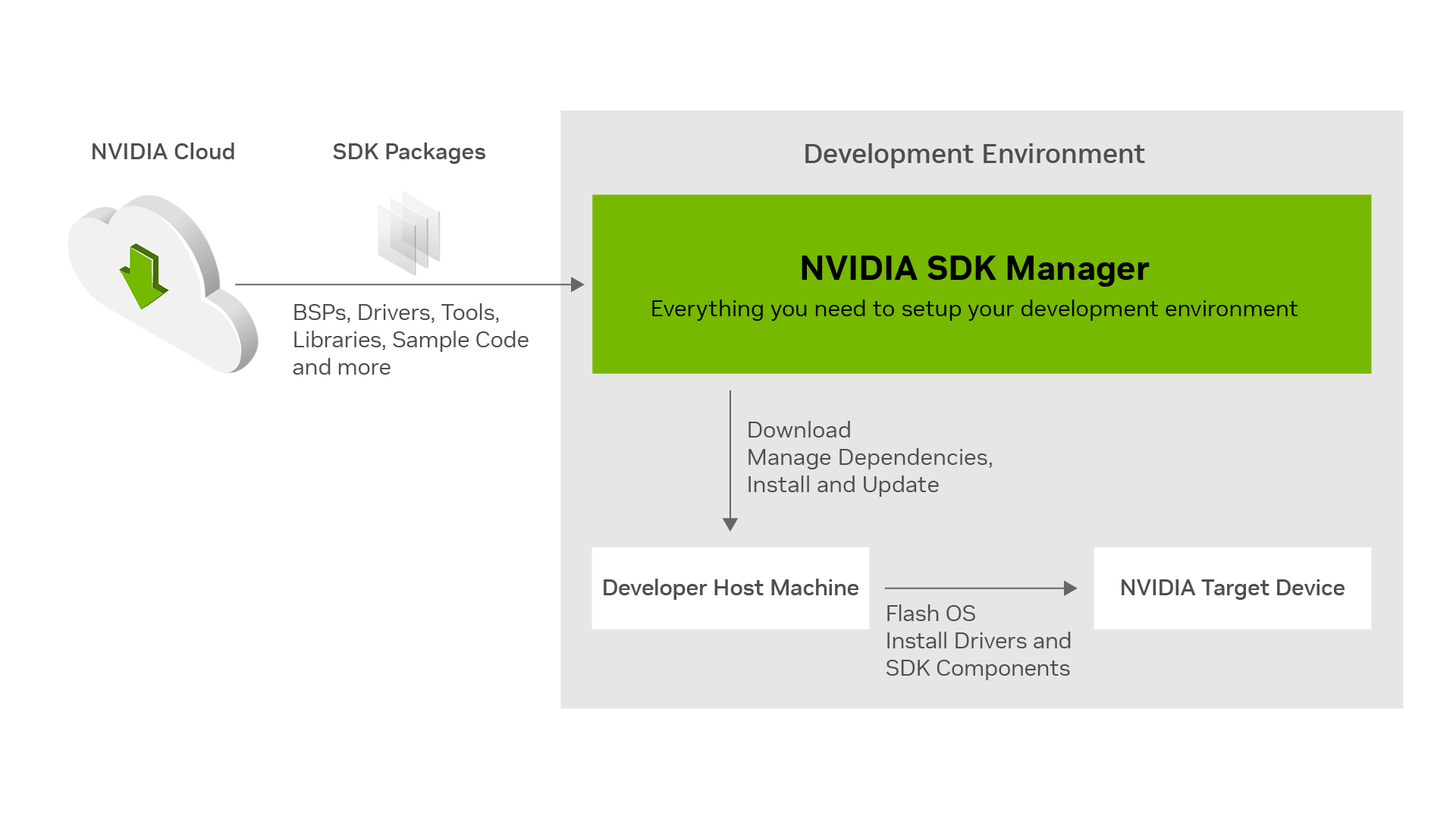
NVIDIA SDK Manager automates development environment setup by downloading SDKs, BSPs (Board Support Packages), drivers, tools, and sample code directly from NVIDIA repositories. For the host machine, it installs required packages including SDK components like CUDA, TensorRT, and Nsight tools, and resolves dependencies to ensure compatibility. For embedded target devices, it flashes the OS (such as Linux for Jetson), installs drivers and SDK components, and manages dependencies over USB or network connections. Supporting both GUI and command line modes, NVIDIA SDK Manager streamlines the entire setup process to deliver consistent, validated environments for AI, edge, and accelerated computing, reducing manual effort and setup time.
Key Features

Centralized Hub for NVIDIA SDKs and Tools
Gain streamlined access to NVIDIA's extensive software ecosystem from a single point of control. SDK Manager serves as a unified hub for discovering, installing, and managing multiple software development kits, ensuring you have the needed versions at your fingertips.

Streamlined End-to-End Development Environment Setup
SDK Manager automates the entire workflow from a bare host machine to a ready-to-use development environment. It orchestrates the entire setup in one seamless workflow, handling tool chains, SDKs, and essential system configuration, minimizing manual setup efforts and reducing the risk of errors.

Intelligent Dependency and Compatibility Management
SDK Manager automatically resolves the complex software dependencies between SDKs, OS drivers, libraries, and tools. It ensures all selected components are cross-compatible and work together seamlessly, preventing version conflicts and creating a stable, reproducible environment for development and testing.

Unified Management for Host and Target Environments
Manage your entire cross-platform development pipeline from a single application. SDK Manager seamlessly handles installation on your host machine and flashing for a wide range of NVIDIA target hardware, supporting a wide variety of operating systems on both host and target devices. This enables efficient development and deployment in a broad range of platforms and configurations.

Flexible Interface for Optimized Workflows
Choose the interface that best suits your development style. SDK Manager offers an intuitive Graphical User Interface (GUI) for straightforward setup and a powerful Command-Line Interface (CLI) for automation and scripting, supporting a variety of development flows.

Proactive Update and Maintenance Notification
Stay current with the latest NVIDIA software advancements. The tool provides automatic notifications for available updates to SDKs, drivers, and tools, ensuring your development environment benefits from the latest features, security patches, and performance improvements.
Host Operating System Compatibility Matrix
While SDK Manager supports all the below host operating systems, you need to verify the SDK package supports the host OS; these requirements are set by the SDK package you are installing.
Base SDKs Host Operating System Compatibility Matrix
See the Base SDKs host operating system compatibility matrix for details:
| NVIDIA SDK | SDK Version | Supported Host Operating System | ||||||||
|---|---|---|---|---|---|---|---|---|---|---|
| Ubuntu | CentOS | Windows | ||||||||
| 18.04 | 20.04 | 22.04 | 22.04 (ARM) | 24.04 | 24.04 (ARM) | 8.2 | 10 | 11 | ||
| JetPack | JetPack 4.x | ✔ | ||||||||
| JetPack 5.x | ✔ | ✔ | ||||||||
| JetPack 6.0.x | ✔ | ✔ | ||||||||
| JetPack 6.1.x or 6.2.x | ✔ | ✔ | ✔ 1 | ✔ 1,2 | ✔ 1,2 | |||||
| JetPack 7.x | ✔ | ✔ | ✔ 3 | ✔ 1 | ✔ 1 | |||||
| Ethernet Switch | Switch 4.x | ✔ | ✔ | ✔ | ||||||
| ARC-OTA | Aerial 22-4 | ✔ | ||||||||
| Aerial 23-4 | ✔ | ✔ | ✔ | |||||||
| ARC-OTA 1.x | ✔ | ✔ | ✔ | ✔ 4 | ||||||
| RAPIDS | RAPIDS 24.x | ✔ | ✔ 5 | |||||||
| RAPIDS 25.x | ✔ | ✔ | ✔ 6 | |||||||
| RAPIDS 26.x | ✔ | ✔ | ✔ | |||||||
| Holoscan | HoloPack 1.2 | ✔ | ||||||||
| RTX Kit | RTX Kit 2025.4 | ✔ | ✔ | |||||||
| RTX Kit 2026.x | ✔ | ✔ | ||||||||
¹ Support Jetson device flashing and target components installation only. Host development is not supported.
² Supported from Jetpack 6.2.1
³ Supported from Jetpack 7.2
⁴ Supported from ARC-OTA 1.6
⁵ Supported from RAPIDS 24.12
⁶ Supported from RAPIDS 25.04
* For older SDK versions run: sdkmanager --archived-versions
* DRIVE OS: The latest version of SDK Manager no longer supports DRIVE OS. To install DRIVE OS 5.0.x or 6.0.x, use SDK Manager 2.2.0 from the archive page.
* DOCA: The latest version of SDK Manager no longer supports DOCA. To install DOCA 1.5 or 2.2, use SDK Manager 2.1.0 from the archive page.
Additional SDKs - Supported Base SDK Compatibility Matrix
See the supported Base SDKs for each additional SDK:
| NVIDIA SDK | SDK Version | Supported Base SDK | ||||
|---|---|---|---|---|---|---|
| JetPack | ||||||
| 4.x | 5.x | 6.x | 7.x | |||
| DeepStream | DeepStream 6.x | ✔ | ✔ | |||
| DeepStream 7.x | ✔ | |||||
| DeepStream 8.x | ✔ | |||||
| DeepStream 9.x | ✔ | |||||
| GXF | GXF Runtime 4.x | ✔ 1 | ||||
| GXF Runtime 5.x | ✔ | |||||
| Holoscan | Holoscan 2.x | ✔ | ||||
| Holoscan 3.x | ✔ | ✔ | ||||
| Holoscan 4.x | ✔ | ✔ | ||||
| Video Codec | Video Codec 13.0 | ✔ 2 | ||||
| Rivermax | Rivermax 1.31 | ✔ | ||||
| Rivermax 1.4x | ✔ | |||||
¹ Available only on Ubuntu 22.04
² Supported from Jetpack 7.1
What’s New in SDK Manager - Version 2.4.1
- SDK Manager now runs natively on Jetson Thor (aarch64), letting you install JetPack 7.x directly on the device without an x86 host
- Support Jetson system upgrade between JetPack 7.x releases without a full re-flash
- Support ISO image flashing for JetPack 7.x in both monitor and headless modes, with relaxed host OS requirements
- Improved JetPack 7.x flashing reliability on Windows and Ubuntu hosts, including disk space checks, auto flash, and post-flash dialog handling
- Windows fixes including proxy honored in the post-flash dialog and automatic CLI exit after response-file installs
- Other bug fixes and stability improvements
Get Started With NVIDIA SDK Manager
The SDK Manager empowers developers to work seamlessly across platforms—whether you're coding on Linux, Docker, or Windows.


DOWNLOAD and INSTALL
Local
- Download the install file for your desired platform
- Run the command for your desired platform:
Ubuntu (x86_64):
sudo apt install ./sdkmanager_[version]-[build#]_amd64.deb
Ubuntu (arm64):
sudo apt install ./sdkmanager_[version]-[build#]_arm64.deb
CentOS:
sudo dnf install ./sdkmanager_[version]-[build#].x86_64.rpm
Network
From a terminal window, run the following commands for your desired platform:
Ubuntu (x86_64):
wget https://developer.download.nvidia.com/compute/cuda/repos/[distro]/x86_64/cuda-keyring_1.1-1_all.deb
sudo dpkg -i cuda-keyring_1.1-1_all.deb
sudo apt-get update
sudo apt-get -y install sdkmanager

# Replace the distro with the one that you are using. Supported distros are: ubuntu2404, ubuntu2204, ubuntu2004, ubuntu1804
Ubuntu (arm64 - Jetson Only):
sudo add-apt-repository "deb https://repo.download.nvidia.com/jetson/sdkmanager main main"
sudo apt update
sudo apt install sdkmanager
CentOS (x86_64):
sudo dnf config-manager --add-repo https://developer.download.nvidia.com/compute/cuda/repos/rhel8/x86_64/cuda-rhel8.repo
sudo dnf clean all
sudo dnf install sdkmanager
LAUNCH
From a terminal window, launch SDK Manager with the command:
sdkmanager
DOWNLOAD and INSTALL
- Download the installer that is compatible with Windows 10 and 11.
- Run the installer to install SDK Manager application step by step.
LAUNCH
Graphical Interface (GUI):
- Use the Start menu shortcut "NVIDIA SDK Manager" or
- Run NvSDKManagerGUI.exe from the installation directory
Command-Line Interface (CLI):
- From a terminal window run:
NvSDKManager.exe --cli
- If not added to the path during installation: from a terminal window, go to the installation directory and run:
./NvSDKManager.exe --cli
For more information, see SDK Manager user guide (Download and Run section).
DOWNLOAD and INSTALL
- Download Docker image with the base OS that you need for required SDK
- Install the Docker image:
From a terminal, load the Docker image:
docker load -i ./sdkmanager-[version].[build#]-[base_OS]_docker.tar.gz
It is recommended that you tag the version as "latest" for ease of use:
docker tag sdkmanager:[version].[build#] sdkmanager:latest
LAUNCH
- The Docker image is designed to be executed directly from the host, without the need to open the terminal inside the docker itself. The sdkmanager executable is the entrypoint.
- SDK Manager CLI arguments should be used directly when running a new container. Example command: SDK Manager CLI with Docker:
docker run -it --rm sdkmanager --help
For more information, see SDK Manager user guide (Docker section).
System Requirements
System requirements of SDK Manager may differ from the system requirements of the specific SDK you are installing.
See System Requirements for each SDK.
Archives
- Visit SDK Manager Downloads Archive for older versions.
- Visit SDK Manager Documentation Archive for older version release notes.
Resources
SDK Resources
NVIDIA Jetson
NVIDIA Product
NVIDIA Jetson™ is a powerful platform for developing innovative edge AI and robotics solutions across industries. It delivers the compact, energy-efficient modules and developer kits with a robust AI software stack you need to deploy next-generation physical AI solutions.
NVIDIA DeepStream SDK
NVIDIA Product
NVIDIA DeepStream’s multi-platform support gives you a faster, easier way to develop and deploy real-time video streaming pipelines for generative AI agents and applications. You can even deploy them on premises, at the edge, and in the cloud with just the click of a button.
NVIDIA Aerial Resource Center (ARC-OTA)
NVIDIA Product
NVIDIA AI Aerial™ is a suite of accelerated computing platforms, software libraries, and tools to build, train, simulate, and deploy AI-native wireless networks. It enables developers and researchers to go from rapid prototyping to commercial development of AI-RAN solutions for 5G and 6G that telcos can deploy.
Open Source Resources
SDK Manager is using open source software available for download here.