NVIDIA Development Tools Solutions - ERR_NVGPUCTRPERM: Permission issue with Performance Counters
Overview
You may encounter the following error message when using NVIDIA tools:
ERR_NVGPUCTRPERM: The user running <tool_name/application_name> does not have permission to access NVIDIA GPU Performance Counters or the Hardware Event System on the target device.
If you are receiving this error, then:
1. You are using a tool that accesses the GPU Performance Counters or the GPU Hardware Event System. These counters and events are developer-specific features that provide low-level access to GPU hardware.
2. Your system administrator or a recent NVIDIA driver installation has disabled access to GPU Performance Counters for regular users due to Security Notice: NVIDIA Response to “Rendered Insecure: GPU Side Channel Attacks are Practical” - November 2018. Your tool is affected by this restriction when using driver versions 419.17+ on Windows or 418.43+ on Linux.
To avoid this error, run the tool or application with elevated privileges or enable access for non-admin users. For problems following these instructions, see the troubleshooting guide.
Run with Elevated Privileges
Run the tool or application being profiled with administrative privileges on the target device:
Linux Desktop: Launch the tool with
sudoor as a user with theCAP_SYS_ADMINcapability set. Starting in driver version R565, theCAP_PERFMONcapability will also allow access. When profiling within a container, access must be enabled on the host, or the container must be started with the appropriate permissions by passing--cap-add=SYS_ADMINas an admin user.- Note that
CAP_PERFMONwill not work in secure execution mode unless profiling within a container as described above. - Windows: Launch the tool by right-clicking the tool and selecting “Run as administrator”, or run the full command from an Administrator command prompt.
- DRIVE, Tegra, and QNX: Launch the tool with
sudoor as the root user. - See also tool-specific information for further details.
Enable Access for Non-Admin Users
Linux Desktop
GPU Performance Counter control requires Linux display driver 418.43 or later.
Also see the “Restricting access to GPU Performance Counters” section of the README.txt in the Linux driver.
Historically, profiling access was controlled via kernel registry keys. Starting with driver version R610, NVIDIA introduces a capabilities-based permission system that provides more granular control over profiling and tracing access. See the Permission Modes Interactions section for details on how these two modes interact.
In a future release, the regkey-based method will be removed. The NVIDIA capabilities method described below replaces it.
Users with CAP_SYS_ADMIN or CAP_PERFMON capabilities will retain the same unrestricted profiling permissions.
Quick Start: Grant Full Profiling Access to All Users (R610+)
To grant all non-admin users full profiling access, run the following script as root:
for cap in profiler-device profiler-context trace-device; do
    minor=$(awk -v c="$cap" '$1==c{print $2}' /proc/driver/nvidia-caps/sys-minors)
    nvidia-modprobe -f /proc/driver/nvidia/capabilities/$cap
    chmod a+r /dev/nvidia-caps/nvidia-cap$minor
    echo "DeviceFileModify: 0" > /proc/driver/nvidia/capabilities/"$cap"
done
For granular control per user, per group, or per capability, see NVIDIA Capabilities Method.
NVIDIA Capabilities Method (R610+)
For R610+ drivers, access to profiling and tracing resources is controlled using “nvidia-capabilities”.
Each profiling capability is represented by its own system-wide device node in the file system.
This NVIDIA-specific permission system is unrelated to Linux’s native capability mechanism (e.g. CAP_SYS_ADMIN).
Access to a specific capability is required to perform certain actions through the driver.
If a user has file read access to the capability, the action will be carried out; otherwise, the action will fail.
Root, or any user with CAP_SYS_ADMIN or CAP_PERFMON privileges, is always granted profiling capabilities.
Access to these nodes can be controlled on a per-user or per-group basis without requiring full admin privileges. For R610, NVIDIA introduces capabilities that represent profiling and hardware tracing subsystems:
profiler-context: Grants profiling access to intra-context scope.profiler-device: Grants profiling access to both intra-context scope and device-level scope. Includes permission granted byprofiler-context.trace-device: Grants permission to collect GPU HW tracing in device-level scope.
Note: Profiling capabilities are granted system-wide and cannot be scoped to individual GPUs. However, they do not extend existing GPU access. A user can only profile GPUs they already have access to.
Granting Non-Admin Profiling Permission via NVIDIA Capability
The capabilities system is based on a combination of the /proc and /dev file systems.
Files under /proc/driver/nvidia/capabilities point to device nodes under /dev, through which cgroups can control access to the capability.
1. Installing Capability Device Nodes
The following profiler-device capability example shows the DeviceFileMinor, DeviceFileMode, and DeviceFileModify fields.
$ cat /proc/driver/nvidia/capabilities/profiler-device
DeviceFileMinor: 4324
DeviceFileMode: 256
DeviceFileModify: 1
The standard location for these device nodes is under /dev/nvidia-caps:
$ ls -al /dev/nvidia-caps/nvidia-cap*
cr-------- 1 root root 510,    1 Mar 31 22:31 /dev/nvidia-caps/nvidia-cap1
cr--r--r-- 1 root root 510,    2 Mar 31 22:31 /dev/nvidia-caps/nvidia-cap2
These device nodes cannot be automatically created or deleted by the NVIDIA driver at the same time it creates or deletes files under
/proc/driver/nvidia/capabilities due to GPL compliance issues.
Instead, the user-level program nvidia-modprobe can be invoked from user space to create them.
$ nvidia-modprobe \
    -f /proc/driver/nvidia/capabilities/profiler-device \
    -f /proc/driver/nvidia/capabilities/profiler-context
nvidia-modprobe looks at DeviceFileMode in each capability file and creates the device node with the indicated permissions.
For example, DeviceFileMode: 256 corresponds to 0400.
$ ls -al /dev/nvidia-caps/nvidia-cap*
cr-------- 1 root root 510,    1 Mar 31 22:31 /dev/nvidia-caps/nvidia-cap1
cr--r--r-- 1 root root 510,    2 Mar 31 22:31 /dev/nvidia-caps/nvidia-cap2
cr-------- 1 root root 510, 4324 Mar 31 22:34 /dev/nvidia-caps/nvidia-cap4324
cr-------- 1 root root 510, 4325 Mar 31 22:32 /dev/nvidia-caps/nvidia-cap4325
The device node minor numbers map directly to the values in /proc/driver/nvidia-caps/sys-minors.
The following examples use nvidia-cap4324, which corresponds to profiler-device.
$ cat /proc/driver/nvidia-caps/sys-minors
fabric-imex-mgmt 4323
profiler-device 4324
profiler-context 4325
trace-device 4326
Programs such as nvidia-smi automatically invoke nvidia-modprobe, when available, to create these device nodes.
It is important to set DeviceFileModify: 0 to prevent other programs from overwriting the setting after device-node creation.
# Update the file with a DeviceFileModify setting of 0
$ echo "DeviceFileModify: 0" > /proc/driver/nvidia/capabilities/profiler-context
To change this in the future, reset it to DeviceFileModify: 1 using the same command sequence.
2. Granting Profiling Permission
You can grant a capability to a specific user, a group, or all users with the following options.
Option 1: Grant profiling capability permission for all non-admin users.
$ chmod a+r /dev/nvidia-caps/nvidia-cap4324
$ ls -al /dev/nvidia-caps/nvidia-cap4324
cr--r--r-- 1 root root 510, 4324 Mar 31 22:34 /dev/nvidia-caps/nvidia-cap4324
Option 2: Grant profiling capability permission for a specific user.
Example for granting the profiler-device capability to Linux account userA:
$ setfacl -m u:userA:r /dev/nvidia-caps/nvidia-cap4324
$ ls -al /dev/nvidia-caps/nvidia-cap4324
c---r-----+ 1 root root 510, 4324 Mar 31 22:34 /dev/nvidia-caps/nvidia-cap4324
Option 3: Grant profiling capability permission for a user group.
Example for granting the profiler-device capability to a Linux user group:
# Create a new Linux user group
$ sudo groupadd performance-counter-group

# Add userA to the group
$ sudo usermod -aG performance-counter-group userA

# Grant profiler-device capability access to the group
$ sudo chmod g+r /dev/nvidia-caps/nvidia-cap4324
Legacy Kernel Regkey-Based Method
Enable Access Permanently
To allow access for any user, create a file with the
.confextension containing optionsnvidia NVreg_RestrictProfilingToAdminUsers=0in/etc/modprobe.d.To restrict access to sudo or admin users (
CAP_SYS_ADMINorCAP_PERFMONcapability set), create a file with the.confextension containing optionsnvidia NVreg_RestrictProfilingToAdminUsers=1in/etc/modprobe.d.
Notes:
- A reboot may be required for the change to take effect.
- On some systems, or when using a package manager to install the driver, it may be necessary to rebuild the initrd after writing a configuration file to
/etc/modprobe.d. - For Red Hat-based distributions, rebuild the initrd with
dracut --regenerate-all -f. - For Debian-based distributions, rebuild the initrd with
update-initramfs -u -k all.
Enable Access Temporarily
1. Before you can insert the kernel module with the required key set or unset, stop the window manager and unload all NVIDIA kernel modules.
As root, or with sudo:
- Stop the window manager with
systemctl isolate multi-user, or your system-specific solution. - Unload modules with
modprobe -rf nvidia_uvm nvidia_drm nvidia_modeset nvidia-vgpu-vfio nvidia.
2. To allow access for any user, run modprobe nvidia NVreg_RestrictProfilingToAdminUsers=0.
3. To restrict access to admin users or non-admin users that have the CAP_SYS_ADMIN or CAP_PERFMON capability set, run modprobe nvidia NVreg_RestrictProfilingToAdminUsers=1.
4. If desired, restart the window manager with systemctl isolate graphical, or your system-specific solution.
Notes:
- Instructions are for systemd-based distributions. For non-systemd-based distributions, a different procedure is required.
- For successful unloading, no processes may be using these modules.
- On Ubuntu systems, when installing via distro-native packages, the kernel module is renamed from nvidia to nvidia-xxx, and nvidia is aliased to nvidia-xxx, where xxx is the major number of the driver. For example, a 418.67 driver would use nvidia-418.
- In case of problems with the above instructions or for non-systemd-based distributions, see the troubleshooting guide at the end of this page.
Permission Modes Interactions
When the kernel registry key NVreg_RestrictProfilingToAdminUsers=1 is set, all non-admin profiling access is restricted.
Access can be controlled and overridden via the new capabilities system on R610+.
When NVreg_RestrictProfilingToAdminUsers=0, all non-admin users have full profiling access regardless of capability settings.
Windows
NVIDIA App
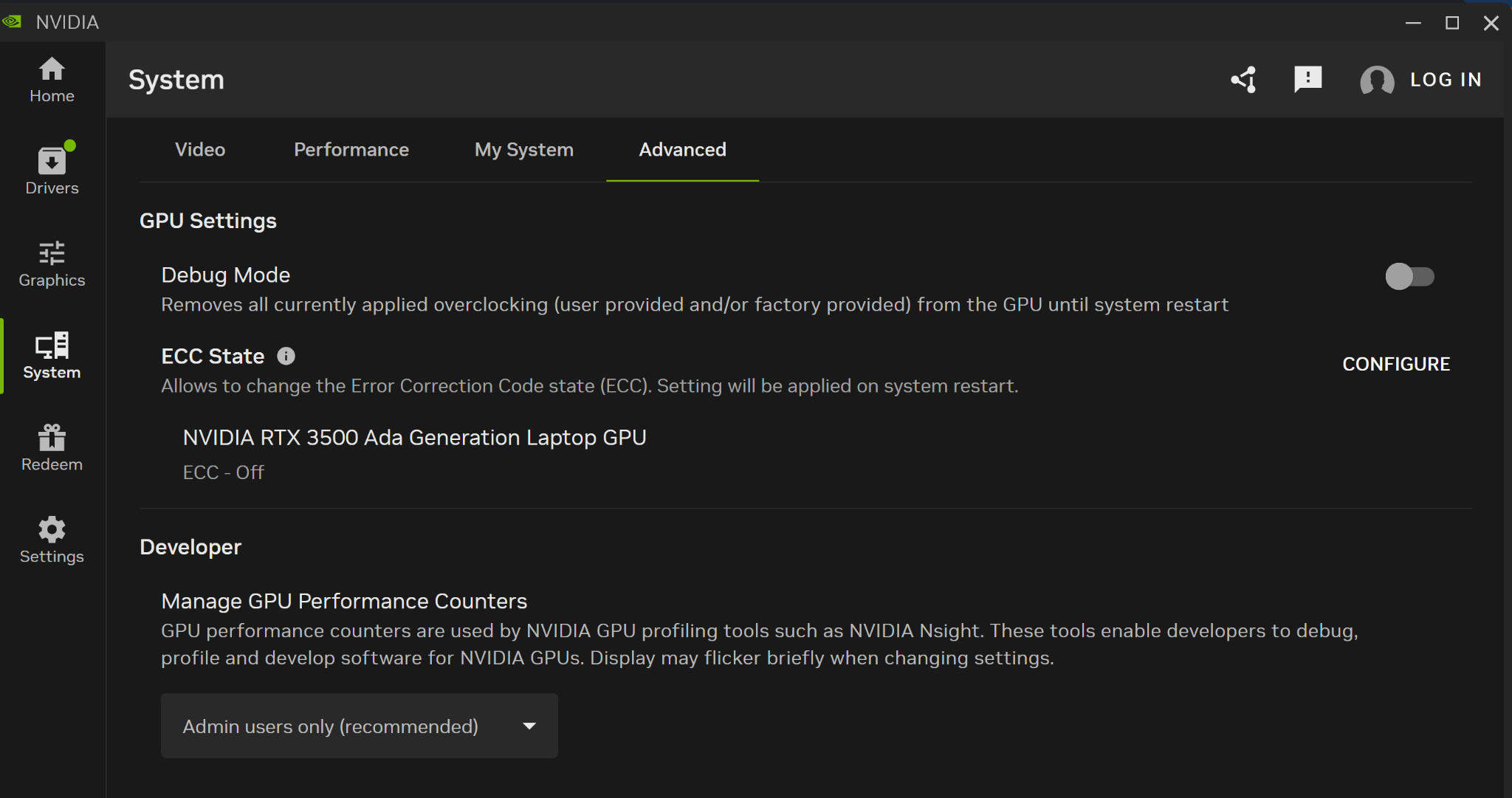
The NVIDIA App is the current way to control access to GPU performance counters. Starting with version 11.0.6, the controls can be found under System > Advanced > Developer > Manage GPU Performance Counters. Choose the appropriate permissions from the drop-down menu. Note that administrative privileges are required to change this setting.
Windows Control Panel
Note: Starting with driver R610, Windows Control Panel support is deprecated and will be dropped in a future release. Use the NVIDIA App controls described above.
The NVIDIA Control Panel is installed with your display driver and supports Microsoft Compute Driver Model (MCDM) on r570 and later, Windows Display Driver Model (WDDM), and Tesla Compute Cluster (TCC) driver modes. You must launch the control panel as a system administrator to manage GPU Performance Counters. The relevant option in the control panel requires display driver 419.17 or later.
Right-click your desktop for quick access to the NVIDIA Control Panel, or launch it from the Windows Control Panel.

Windows Step 1: Open the NVIDIA Control Panel, select “Desktop”, and ensure “Enable Developer Settings” is checked.

Windows Step 2: Under “Developer” > “Manage GPU Performance Counters”, select “Allow access to the GPU performance counter to all users” to enable unrestricted profiling.[1]
[1] Note: The 425.25 Windows driver control panel for Tesla family GPUs may not respect the performance counter access setting. If you encounter this issue, see the Tesla on Windows Control Panel Issue page.
Windows MCDM Driver Mode (r565 and Earlier)
The NVIDIA Control Panel for drivers prior to r570 does not currently support Microsoft Compute Driver Model (MCDM) and will report NVIDIA Display settings are not available. To allow non-admin profiling while using MCDM driver mode before r570:
1. Put the Tesla GPU into TCC mode using nvidia-smi -dm 1. A reboot is required for the change to take effect.
2. Launch the NVIDIA Control Panel and enable the non-admin profiling option for the TCC GPU, as described above.
3. Put the GPU back into MCDM mode using nvidia-smi -dm 2. A reboot is required for the change to take effect. The TCC setting continues to apply for the MCDM GPU.
DRIVE, Tegra, and QNX
You must enable GPU profiler support and profile as sudo or the root user for access to GPU Performance Counters.
To enable GPU profiler and debugger support:
- Set the
support-gpu-toolsdevice tree property in the GPU device node to1. - Recompile the Device Tree following the instructions in the appropriate DRIVE OS SDK Development Guide:
- DRIVE OS Linux SDK Development Guide
- DRIVE OS QNX SDK Development Guide
- Flash the updated DTB.
Troubleshooting
Linux Desktop
Diagnosing kernel module unload errors
If you encounter errors when unloading kernel modules that indicate they are still in use, processes still have handles to the relevant devices in
/dev. To identify which process is causing the error, use sudo lsof /dev/nvidia*.
This lists all processes holding handles to GPU device nodes. All listed processes must be terminated before the kernel modules can be unloaded.
Verifying profiling access
The method for verifying profiling access depends on which permission method is in use.
Legacy regkey-based method: The currently loaded parameters for the nvidia kernel module can be viewed in
/proc/driver/nvidia/params. The boolean flag RmProfilingAdminOnly reflects the state of the
NVreg_RestrictProfilingToAdminUsers regkey. When set to 1, only administrative users are allowed to access GPU Performance Counters.
When set to 0, all users have access. On R610+ drivers, this flag only reflects the regkey state and does not account for capability-based access grants.
Capability-based method (R610+): To verify whether a user has access to a specific profiling capability, look up the capability’s device node minor number from
/proc/driver/nvidia-caps/sys-minors:
$ cat /proc/driver/nvidia-caps/sys-minors
fabric-imex-mgmt 4323
profiler-device 4324
profiler-context 4325
trace-device 4326
Then check the permissions on the corresponding device node:
$ ls -al /dev/nvidia-caps/nvidia-cap<minor>If ACL-based access was configured via setfacl, use:
$ getfacl /dev/nvidia-caps/nvidia-cap<minor>Verifying modprobe.d configuration
To check whether the modprobe.d file was correctly included in your initrd, run one of the following commands:
- Debian-based distributions:
sudo lsinitramfs /boot/initrd.img | grep /etc/modprobe.d - Red Hat-based distributions:
sudo lsinitrd | grep /etc/modprobe.d
The .conf file you created should appear in the output.
Both commands search the default initrd file. To specify which initrd to search, see the manual pages for these commands.
Tool-Specific Solutions
The following tools may encounter this issue and may have tool-specific information on the associated pages: