

Linux NSR File Systems#
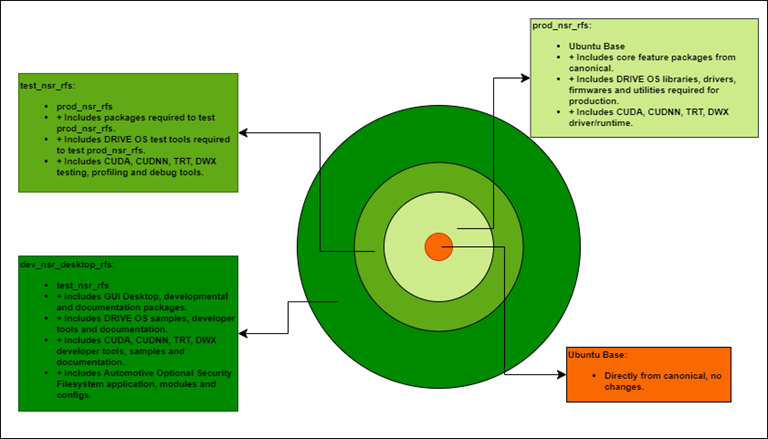
NVIDIA DriveOS™ Linux consists of a hierarchy of NSR (Non-Safety-Related) file systems. Each layer is assigned a purpose, and the particular purpose of that layer defines the contents of the file system. The following image represents the hierarchy of file systems. Each layer builds on top of other layers
Ubuntu Base
The base layer at the bottom of the hierarchy is the Canonical (open source) Ubuntu Base file system. The DriveOS Linux file systems are built on top of it.
prod_nsr_rfs
The next layer is prod_nsr_rfs (Production NSR Root Filesystem). The filesystem does not include openssh-server or serial-getty services (to block the use of any external interfaces to change/program the filesystem), which contains everything in Ubuntu base RFS and extra content for production configuration.
test_nsr_rfs
The next layer is the test_nsr_rfs (Test NSR Root Filesystem), which contains everything in prod_nsr_rfs and then adds profiling, debug utilities, and DriveOS samples for prod_nsr_rfs testing. Except for openssh-server and serial-getty services, no other services are added to this test_nsr_rfs to ensure the system state is not changed. When this filesystem is booted, you can log into the system using the configured username and password using a minicom shell running on the serial port in addition to SSH access.
dev_nsr_desktop_rfs
The next layer is named dev_nsr_desktop_rfs (Developer NSR Desktop Root Filesystem), which by default:
This filesystem enables you to configure user accounts using the Oem-Config app via GUI or serial console based on the display connection state. For additional information, refer to Host/Target Setup and Configuration.
Upon successful configuration, the filesystem loads the login prompt on the Serial Console and the GUI Desktop (assuming the display is connected and accessible).
The dev_nsr_desktop_rfs contains the content from the test_nsr_rfs filesystem and then adds canonical packages for developers, documentation and a GUI Desktop. Further, it includes the DriveOS LINUX-specific samples, documentation, and developer-friendly tools. This file system is intended for developers to have an out-of-the-box experience (OOBE) via Serial Console or GUI Desktop.
DriveOS LINUX Filesystem Manifests#
After building the rootfs image, the manifest for each Rootfs is located within the target rootfs at the directory/etc/nvidia/rootfilesystem-manifest/:
prod_nsr_ubuntu-24.04_rfs.MANIFEST.json
test_nsr_ubuntu-24.04_rfs.MANIFEST.json
dev_nsr_desktop_ubuntu-24.04_rfs.MANIFEST.json
You can find the manifest of each Rootfs, which contains the itemized listing of Debian packages preinstalled in the file system alongside the built EXT4 image of the filesystem, along the following paths. Under directory /drive/drive-linux/filesystems/targetfs-images/ the RFS Image Manifests exist:
prod_nsr_ubuntu-24.04_rfs.manifest & prod_nsr_ubuntu-24.04_rfs.MANIFEST.json
test_nsr_ubuntu-24.04_rfs.manifest & test_nsr_ubuntu-24.04_rfs.MANIFEST.json
dev_nsr_desktop_ubuntu-24.04_rfs.manifest & dev_nsr_desktop_ubuntu-24.04_rfs.MANIFEST.json
The manifest can be used to identify the information defined in the NVIDIA DriveOS Build-FS config for generating the filesystem. For more information, see NVIDIA Build-FS documentation.
User Management#
The filesystem test_nsr_rfs has the preinstalled admin user account with username and password nvidia,
whereas prod_nsr_rfs does not have any preinstalled user account. For both prod_nsr_rfs and test_nsr_rfs
user accounts must be added/updated before flashing because after flashing both rootfs has /etc/ directory
set to read-only.
If you wish to change the username or password of the existing account in test_nsr_rfs, update the config
/drive/drive-linux/filesystem/configs/test_nsr_rfs.CONFIG.json (to replace username and password from nvidia/nvidia).
If you want to add a user account to prod_nsr_rfs, update the config /drive/drive-linux/filesystem/configs/prod_nsr_rfs.CONFIG.json (based on entries in test_nsr_rfs.CONFIG.json).
In contrast, the dev_nsr_desktop_rfs filesystem runs Oem-Config on first-time flash and boot (or if bootburn has been run with --init_persistent_partitions cmdline) to configure user accounts. For user account customization in dev_nsr_desktop_rfs, such as changing username, password, or more, refer to DriveOS Linux User Management. The dev_nsr_desktop_rfs support both secured shell (ssh) and serial console logins, the test_nsr_rfs supports only secured shell (ssh) login, and the prod_nsr_rfs includes neither secured shell (ssh) nor serial console logins (as expected for a production environment).
Note
If you experience instability or timeouts with ssh connections to a DRIVE AGX System in the DRIVE AGX System, set -o ServerAliveInterval to keep the ssh session live. For example:
$ ssh -o ServerAliveInterval=240 nvidia@<Target IP Address>
See the standard Linux ssh manpage documentation for more information.
Networking and SSH-Server#
The filesystems test_nsr_rfs and dev_nsr_desktop_rfs contain the openssh-server package preinstalled. The openssh-server configuration can be customized. All of the filesystems, however, contain the openssh-client package preinstalled.
To configure the network, complete the steps in Host/Target Setup and Configuration.
Using dev_nsr_desktop_rfs without GUI Desktop#
The dev_nsr_desktop_rfs provides the option to rootfs users to provide the D6.0/D6.x equivalent of driveos-oobe-rfs (which had OOBE packages but not desktop) to disable the desktop on boot.
To disable the desktop in dev_nsr_desktop_rfs, remove the following stamp file within the target and reboot the target.
sudo rm -fv /etc/nvidia/use_graphical_target
sudo reboot
In the next boot, the systemd boots to multi-user.target instead of graphical.target. To re-enable the GUI desktop in the target, add the stamp file /etc/nvidia/use_graphical_targetand reboot.
sudo touch /etc/nvidia/use_graphical_target
sudo reboot