
Radar Replay Sample#
Note
Third-party sensors and accessories noted on this page are for illustrative purposes. Please refer to NVIDIA® DRIVE® Hyperion™ 8.1 Sensors and Accessories for supported sensors and accessories.
Description#
The Radar Replay Sample demonstrates how to connect to a radar and display the generated point cloud in 3D.
For a list of currently supported radar devices, see the NVIDIA DriveOS Release Notes.
Prerequisites#
The radar must be up and running, and connected to the network.
If the radar being used is the Continental ARS430 Ethernet radar, the following commands need to be executed to setup the routing tables.
On Linux execute:
ARS430 radar:
sudo ifconfig eth0:900 10.1.0.81 || true
sudo route add -net 224.0.0.0 netmask 240.0.0.0 dev eth0:900 || true
sudo route add -net 10.1.0.0 netmask 255.255.0.0 dev eth0:900 || true
ARS430 RDI radar:
sudo ifconfig eth0:900 192.168.3.81 || true
sudo route add -net 224.0.0.0 netmask 240.0.0.0 dev eth0:900 || true
sudo route add -net 192.168.3.0 netmask 255.255.255.0 dev eth0:900 || true
ARS620 OMS radar:
sudo ip link add link mgbe2_0 name mgbe2_0.1022 type vlan id 1022
sudo ip link set dev mgbe2_0.1022 up
sudo ip addr add 10.22.1.50/16 dev mgbe2_0.1022
Hella 6G0 OMS radar:
sudo ip link add link mgbe2_0 name mgbe2_0.1022 type vlan id 1022
sudo ip link set dev mgbe2_0.1022 up
sudo ip addr add 10.22.1.50/16 dev mgbe2_0.1022

sudo ip link add link mgbe2_0 name mgbe2_0.1027 type vlan id 1027
sudo ip link set dev mgbe2_0.1027 up
sudo ip addr add 10.27.0.1/16 dev mgbe2_0.1027
On QNX execute:
ARS430 radar:
ifconfig eq0 alias 10.1.0.81
route add 224.0.0.0 10.1.0.81 240.0.0.0
route add 10.1.0.0 10.1.0.81 255.255.0.0
ARS430 RDI radar:
ifconfig eq0 alias 192.168.3.81
route add 224.0.0.0 192.168.3.81 240.0.0.0
route add 192.168.3.0 192.168.3.81 255.255.255.0
Running the Sample#
The command line for the sample is:
./sample_radar_replay [options]
Options#
The sample accepts the following optional arguments:
- --protocol=radar.virtual|radar.socket|radar.custom|radar.live[=radar.virtual]#
Allows to specify which radar driver to use.
radar.virtualis used for recorded file.radar.socketis used for live IP based radars and custom decoder plugin based radars.radar.customis used for custom full sensor plugin based radars.radar.liveis used for new custom codec plugin based radars.
- --params={key=value},{key=value},...[=file=data/samples/sensors/radar/conti/ars_v4.bin]#
Comma separated list of key/value pairs. Different parameters are available for each radar driver.
- --output-dir={folder}#
Specifies the output directory, where stores radar dumps.
See also Common Options.
Interactive Controls#
The following interactions with the sample are available at runtime:
Mouse Left Button: rotates the point cloud.
Mouse Wheel: zooms in or out.
Space: makes a pause.
R: resets the camera view and the artificially increased or decreased frame rate.
G: shows/hides circular and rectangular grid.
F1: shows/hides text message hints.
Note
For a full list of key/value pairs that can be passed to --params see Sensor Enumeration Sample.
Examples#
Display Live Radar Point Clouds#
./sample_radar_replay \
    --protocol=radar.socket \
    --params=device=[type of device],ip=[radar IP address],port=[radar port]
where [type of device] is one of the following:
CONTINENTAL_ARS430CONTINENTAL_ARS430_RDICONTINENTAL_ARS430_RDI_V2DELPHI_ESR2_5CUSTOM
Note
In case of
CONTINENTAL_ARS430, the additional parametermulticast-ip=239.0.0.1is required.For more information on using custom sensors see Integrating with Custom Sensors.
Display Recorded Radar Point Clouds#
./sample_radar_replay --params=file=[radar bin file]
The radar file can be obtained with the provided recording tools.
If no arguments are passed, a default radar file is loaded.
Display Custom Radar Plugin Point Clouds#
./sample_radar_replay \
    --protocol=radar.custom \
    --params=decoder-path=<path_to_so>[,<custom params>]
Display Codec Radar Plugin Point Clouds#
./sample_radar_replay \
    --protocol=radar.live \
    --params=codec=<codec_name>[,<custom params>]
Output#
The sample opens a window to display a 3D point cloud. The output contains directed unit velocity vectors, other than the points displayed.
If the velocity is 100 km/h or less, the directed vectors are red. If it is 200 km/h or more, they are green.
World space axes:
Red-OX
Blue-OY
Green-OZ
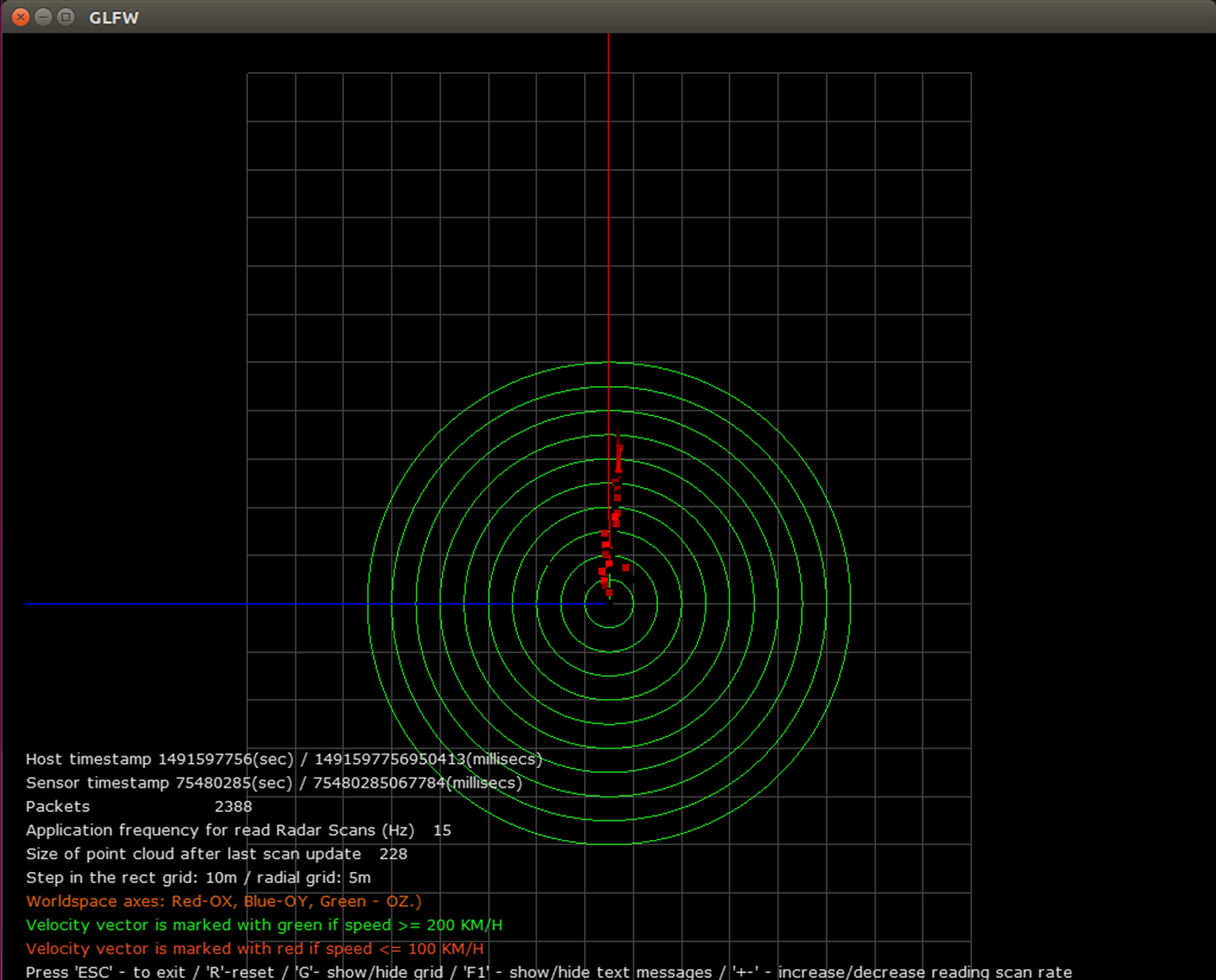
Radar Point Clouds Sample#
Additional Information#
For more details see Radar.