

Requirements for Development Environments#
Follow these high-level steps to set up your development environment host machine and target DRIVE AGX Thor Developer Kit:
Verify you meet the system requirements for installing software on your DRIVE AGX Thor Developer Kit.
Review the NVIDIA DRIVE AGX Thor Developer Kit Hardware Quick Start Guide for your specific hardware.
Review important information in the NVIDIA DriveOS Linux 7.2.5 Early Access Release Notes ahead of installation.
Follow the instructions in Configuring Container Registry Access and Installing NVIDIA DriveOS based on your user type.
System Requirements#
Category |
Requirement |
|---|---|
Host Machine |
Ubuntu Desktop 24.04 LTS or later is required for flashing the NVIDIA DriveOS SDK and for developing CUDA and TensorRT applications Working Internet connection |
GPU |
Required: NVIDIA Ampere-based GPU or newer
Preferred: NVIDIA Ada Lovelace-based GPU or newer
|
Architecture |
X86_64 |
Memory |
8GB minimum |
Free Disk Space |
A minimum of 70GB and up to 120GB (during flash) free disk space is required for each full (host and target) deployed SDK version. An additional 200GB of disk space is required for downloading, building, and flashing the DriveOS Yocto components. |
GUI |
X11 must be enabled on the host. |
Graphics Driver |
The most recent graphics driver for your GPU must be installed on the host system. To update your driver, use one of the following methods:
Warning Do not mix both the download and |
Docker |
The minimum required version of Docker Engine to run NVIDIA DriveOS Linux Docker containers is 19.03. |
Target Device |
Supported development platform: NVIDIA DRIVE AGX Thor Developer Kit Refer to the NVIDIA DRIVE AGX Thor Developer Kit Hardware Quick Start Guide. If you experience issues:
|
Optional |
DRIVE Platform Supported Boards#
NVIDIA DriveOS 7.2.5.0 supports the following NVIDIA DRIVE platform boards.
Note
To flash your system, locate your Part Number (P/N) in the table below, and use the associated Board Variant as a parameter with binding and flashing utilities during Installing NVIDIA DriveOS.
If you are unsure of your Part Number (P/N) , see Identifying System Part Numbers (P/N).
Official Name |
Part Number |
Board Variant |
DriveOS Version Required |
|---|---|---|---|
NVIDIA DRIVE AGX Thor Developer Kit SKU 10
|
940-63960-H310-C00
|
p3960-10-sw03
|
7.0.2.0+
|
NVIDIA DRIVE AGX Thor Developer Kit SKU 10/12
|
940-63960-0010-D00
940-63960-0012-D00
940-63960-0010-000
940-63960-0012-000
670-63960-0010-000
670-63960-0012-000
|
p3960-10-sw03
|
7.0.3.0+
|
NVIDIA DRIVE AGX Thor Developer Kit SKU 10/12
|
940-63960-0010-000
940-63960-0012-000
670-63960-0010-001
670-63960-0012-001
|
p3960-10-sw03
|
7.0.5.1+ or 7.2.5.0+
|
Note
The final revision of the DRIVE AGX Thor DevKit uses production versions of the Infineon 10 Gb Ethernet Phy and Realtek Ethernet Switch, which will only be supported starting in DriveOS SW releases 7.0.5.1 (or later) and 7.2.5.0 (or later). While these updates do not result in a functional change to the hardware, they do require corresponding software support that is not present in 7.2.4.0 or earlier DriveOS releases. These updates are differentiated using the 670-level NVPN:
- 670-63960-0010-000, 670-63960-0012-000
Initial Infineon 10 Gb Ethernet Phy and Realtek Ethernet Switch devices
- 670-63960-0010-001, 670-63960-0012-001
Production Infineon 10 Gb Ethernet Phy and Realtek Ethernet Switch devices
Identifying System Part Numbers (P/N)#
The Part Number (P/N) is located on the bottom of your system. For example, the following image shows the bottom of the DRIVE AGX Thor Developer Kit.
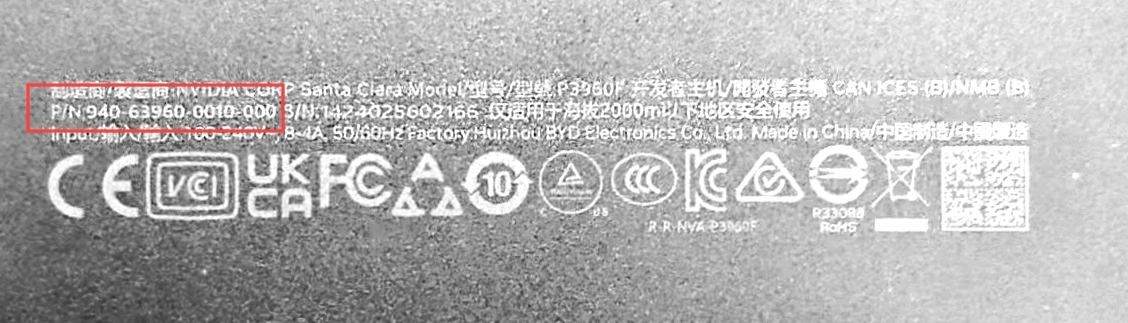
In addition, users can identify the 670 part number by using the following steps:
Connect a UART console to the Safety MCU; for instructions, see “Determining the USB Port and Serial ID” in the NVIDIA DriveOS Linux SDK Developer Guide.
Enter the following command:
NvShell>inforom print
The output will be as follows; the 670-level NVPN is highlighted for clarity:
Info: Executing cmd: inforom, argc: 1, args: print
INFOROM status: ff320000 Okay
OAT:
  Object type         : OAT
  Object version      : 1
  Object subversion   : 0
  Object size         : 64
  ROM size            : 0x200
  Checksum            : 0x2b24
  Object  1 Type      : SYS
  Object  1 Location  : 0x40
SYS:
  Object type         : SYS
  Object version      : 6
  Object subversion   : 0
  Object size         : 100
  System Build test date: 2025/03/18
  Product Part Number : 670-63960-0010-000
  BOM Major Rev       : B1
  System Serial number: 1411125200060
  System Release Level: NA
  RWK                 : 1
  Starting MAC Address: Address 4281467005, size 8
3c:6d:66:44:60:d4
  Total Number of MAC Addresses: 6
  CVM Serial Number   : 1411025100390
  Base MAC for CVM    : Address 4281467030, size 8
3c:6d:66:28:b0:10
  Total Number of MAC address for CVM: 12
  Reserved            : 0xffffff
  Checksum            : 0x6173
INFOROM end of data
Valid Migration Paths#
NVIDIA DriveOS Linux 7.2 supports the following migration paths. Bootburn is supported for all users.
Note
DRIVE Update is only available to NVIDIA NVONLINE users who have the necessary agreements in place. For more details, contact your NVIDIA representative.
NVIDIA Developer users should use bootburn for install, upgrade, and downgrade flows.
From Version |
Upgrade To |
Downgrade To |
|---|---|---|
7.0.3.0 |
7.0.2.0 |
|
7.2.4.0 |
7.2.5.0 |
7.2.3.0 |
7.2.5.0 |
— |
7.2.4.0 or 7.0.3.0 |
MCU Firmware Backward Compatibility#
During DriveOS downgrades within a given minor branch (for example, within 7.0.x or within 7.2.x), the MCU firmware is not downgraded along with DRIVE AGX SoC software downgrades. This behavior is intentional to avoid write cycle limitations for internal flash memory on certain Safety MCU devices.
To minimize flash write cycles during frequent upgrade/downgrade loops, such as within a development CI/CD environment, rules were added to ensure that newer firmware versions are backward compatible with previous releases. As a result, configurations such as 7.2.4 MCU firmware paired with 7.2.3 DRIVE AGX SoC software will still work.
For DriveOS downgrades between different minor branches (for example, from 7.2.x to 7.0.x), however, the MCU firmware will be downgraded along with the DRIVE AGX SoC software when using the Bootburn firmware flashing mechanism (the -x option in the bootburn command).
Troubleshooting#
For troubleshooting support:
NVIDIA NVONLINE users: Click Report a Bug in the NVIDIA NVONLINE Portal.
NVIDIA Developer users: Request support at the NVIDIA Developer Forum.